Kha Y Tran
 A Crosshair CS2 setting may look like a small detail. However, it can have a big impact on your aiming experience. An easy-to-see crosshair helps you find your aim point faster. At the same time, the right crosshair can help you keep your aim steady during gunfights.
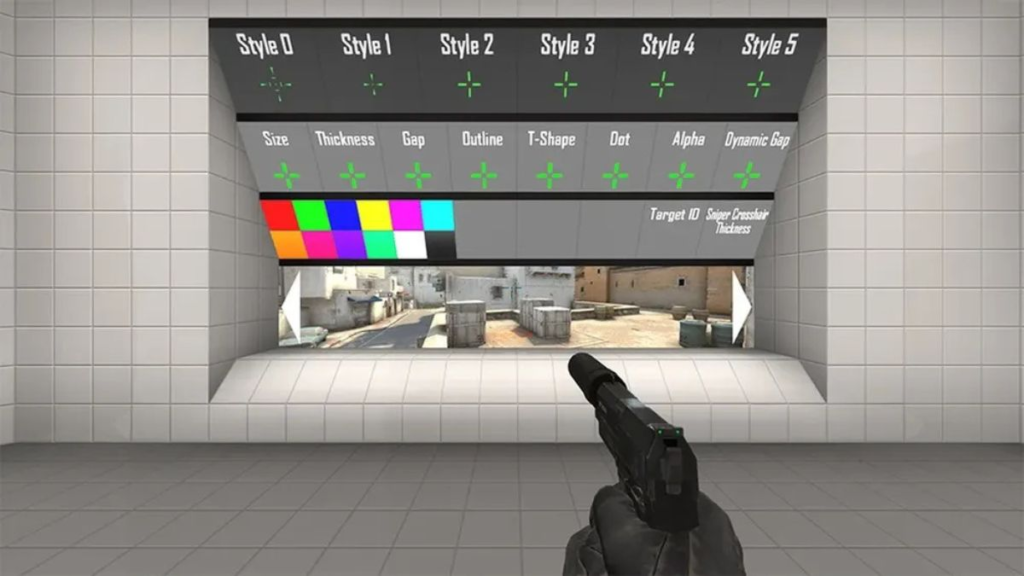
In Counter-Strike 2, players can adjust many crosshair settings. For example, you can change its color, size, thickness, and gap. You can also add an outline or a center dot.
However, there is no single best Crosshair CS2 setting for everyone. Each player has a different monitor, resolution, and aiming habit. Therefore, you should try different settings to find the one that suits you best.
What Is a Crosshair in CS2?
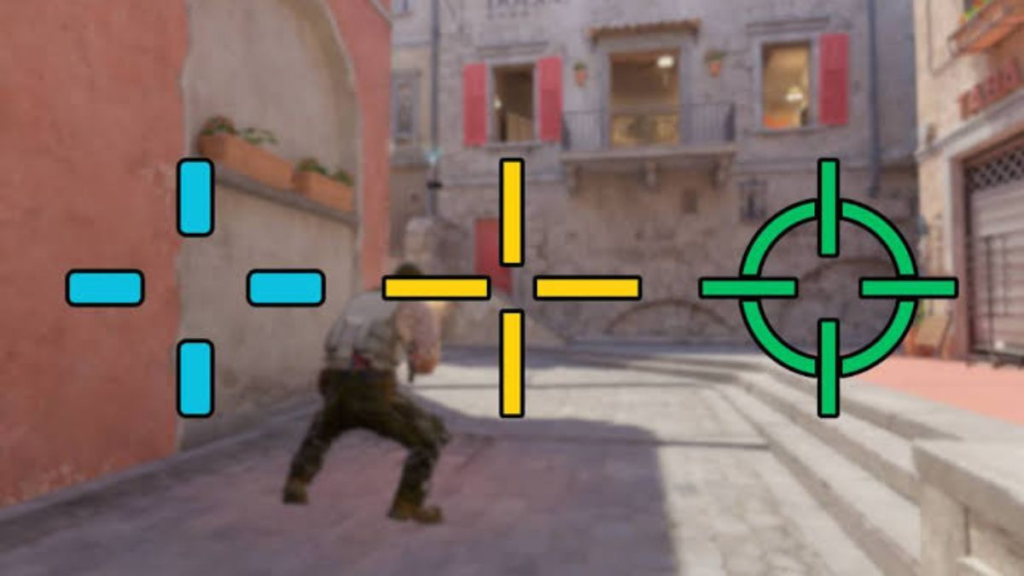
A crosshair is the aiming marker near the center of your screen in CS2. It helps you identify where you are aiming and where to place your shots. In the game, you can change the crosshair’s shape, size, and color. In addition, you can choose between a static or dynamic crosshair.
However, a crosshair does not make your weapon more accurate. It also does not automatically guide bullets toward your target. Instead, it mainly helps with visibility. At the same time, it can help you keep a consistent aim position.
A good crosshair should be easy to see. Moreover, it should not cover too much of the target. This is especially important when fighting enemies at long range.
If the crosshair is too thin, you may lose sight of it against bright backgrounds. On the other hand, a crosshair that is too large can cover the enemy’s head.
Therefore, instead of copying a popular setup, choose a crosshair based on your own needs.
How to Change Your Crosshair in CS2
CS2 includes built-in crosshair settings. Therefore, you do not need third-party software.
It is also the easiest way to test different crosshair styles.
Open the CS2 Crosshair Settings
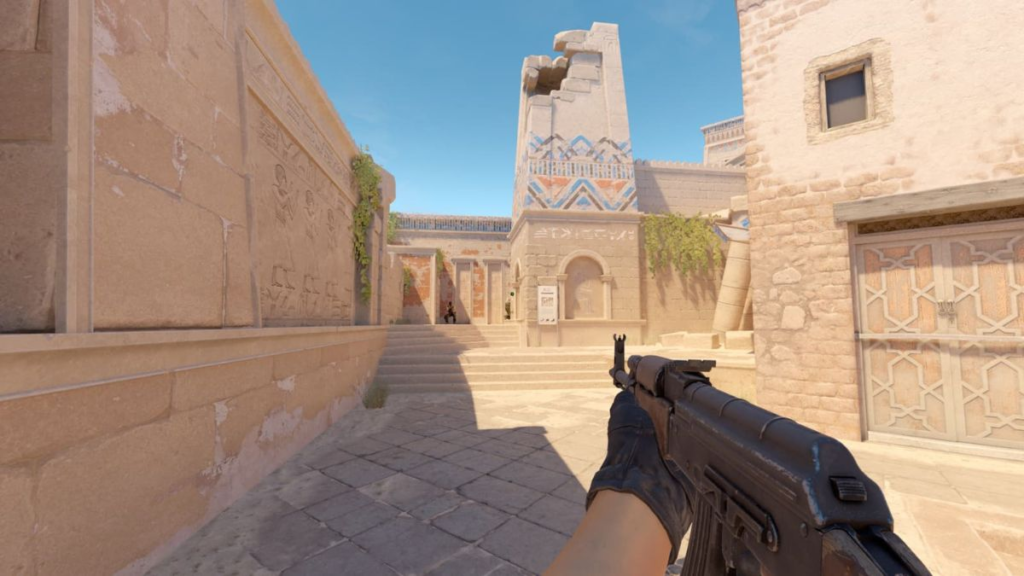
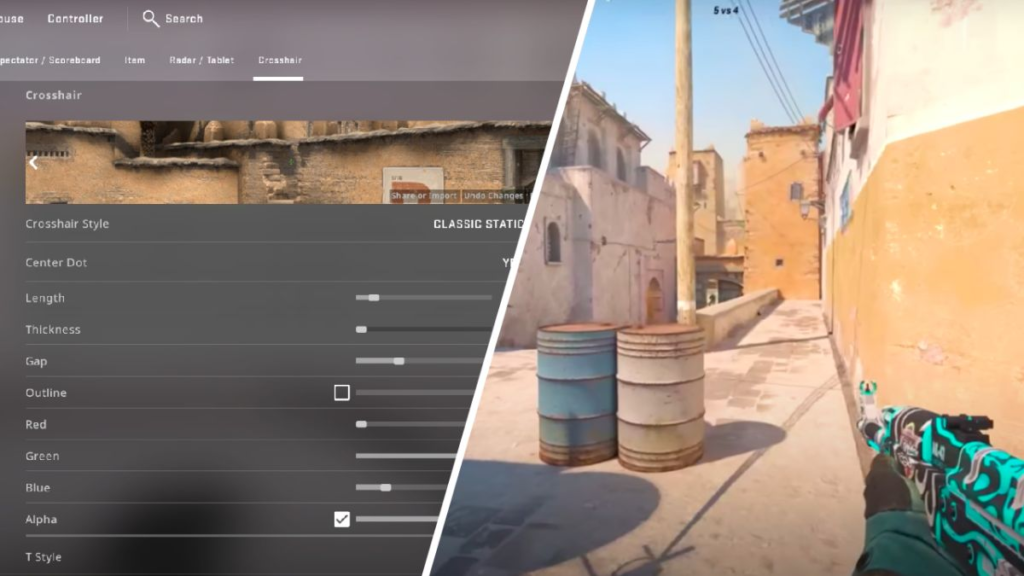
First, open Settings from the main menu. Then, select Game and find the Crosshair section. Here, you will see several options for changing your crosshair. Depending on the game version and interface language, the location of some options may vary.
When you start adjusting your crosshair, change one setting at a time. This way, you can understand exactly which setting affects your aiming experience. For example, change the color first. Then, adjust the size and gap. Finally, test the thickness and outline.
As a result, finding the right Crosshair CS2 setup becomes much easier.
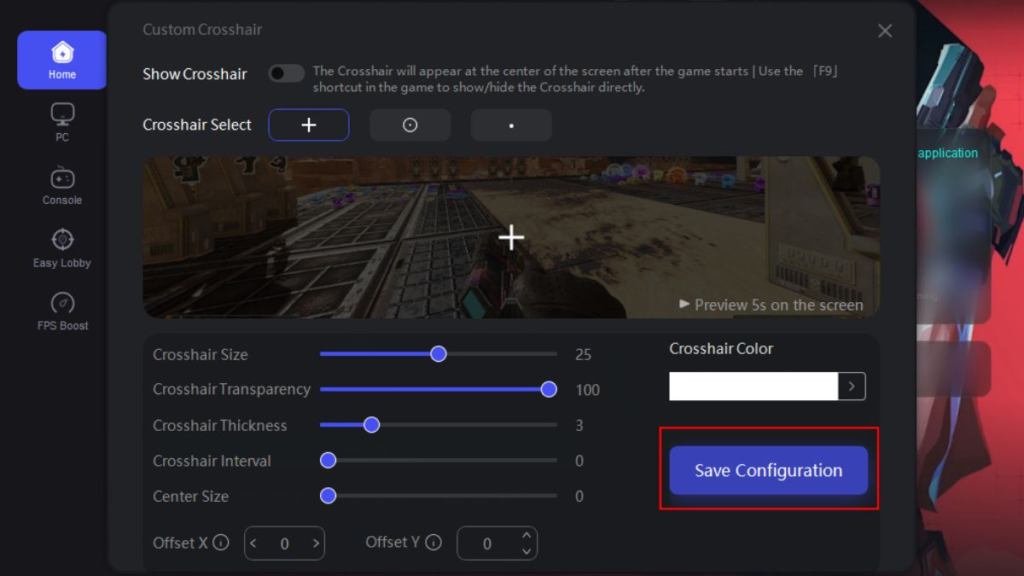
Adjust the Style, Size, and Gap
The crosshair style controls how your aim looks during gameplay. If you want a stable visual marker, try a static crosshair. This style is useful for players who like to keep their crosshair at head level.
Meanwhile, a dynamic crosshair changes as you move or shoot. This gives you visual feedback during gameplay. However, the movement can also become distracting.
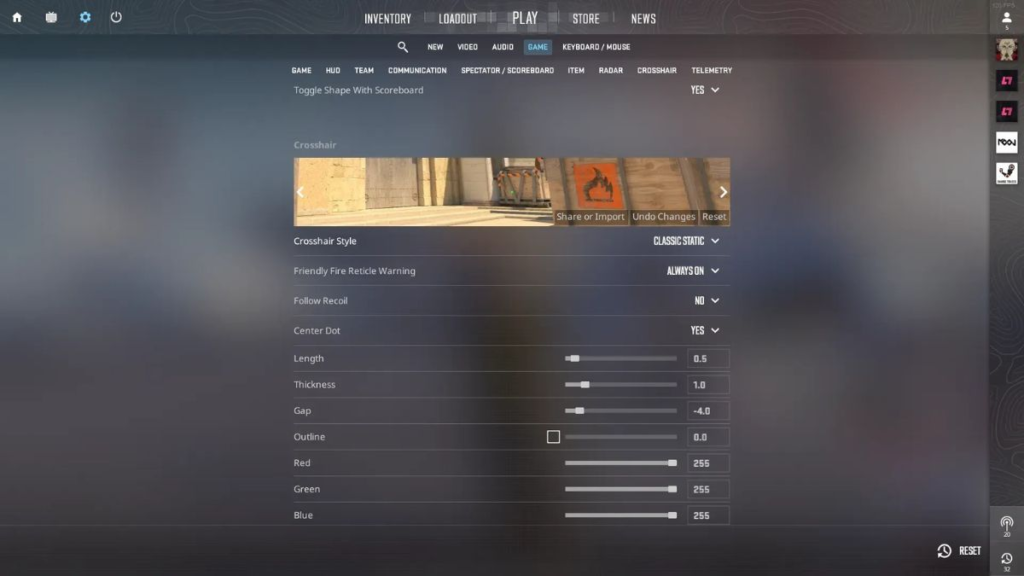
Next, consider the crosshair size. A small crosshair leaves more space around the center of the screen. Therefore, it can work well for players who often take long-range fights.
On the other hand, a larger crosshair is easier to spot when turning quickly. However, it can also cover part of the target if it is too large. The crosshair gap is also important. This is the empty space between the crosshair lines.
If the gap is too small, the center can look crowded. In contrast, a gap that is too large can make the exact center harder to identify. Therefore, try several settings. Also, test your crosshair at both short and long distances.
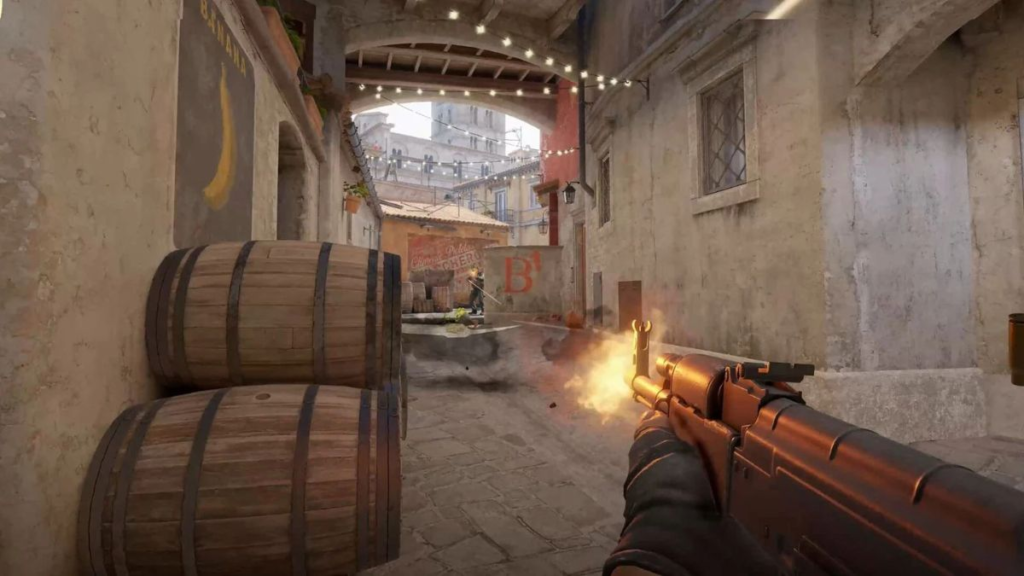
Adjust Thickness, Outline, Center Dot, and Color
Thickness makes your crosshair more visible. However, making it too thick can cause it to take up too much space on the screen. If you often lose track of your crosshair, try increasing the thickness slightly. In addition, you can enable an outline.
An outline helps the crosshair stand out against similar-colored backgrounds. However, you should still test it against both bright and dark areas. This way, the crosshair will not become too heavy. You can also enable a center dot. This option is useful for players who prefer a clear point in the middle of the screen.
However, a center dot is not always better. When combined with a large and thick crosshair, it can make the center look cluttered.
Finally, consider the crosshair color. There is no single best color for every map. Instead, focus on contrast.
A color that is easy to see against a dark background may become harder to see on a bright surface. Therefore, test your crosshair in different areas before choosing a final color.
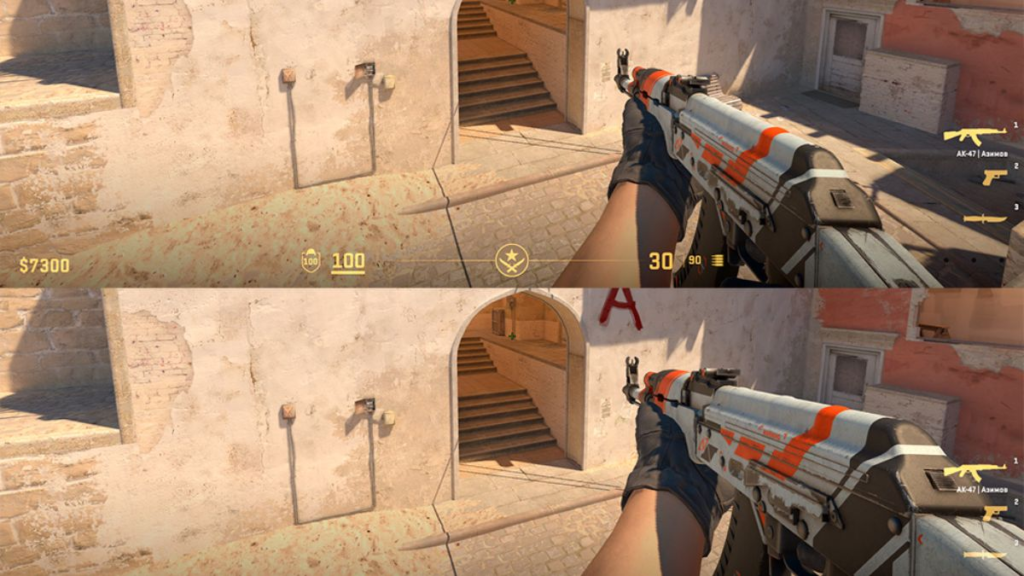
How to Import a CS2 Crosshair Code
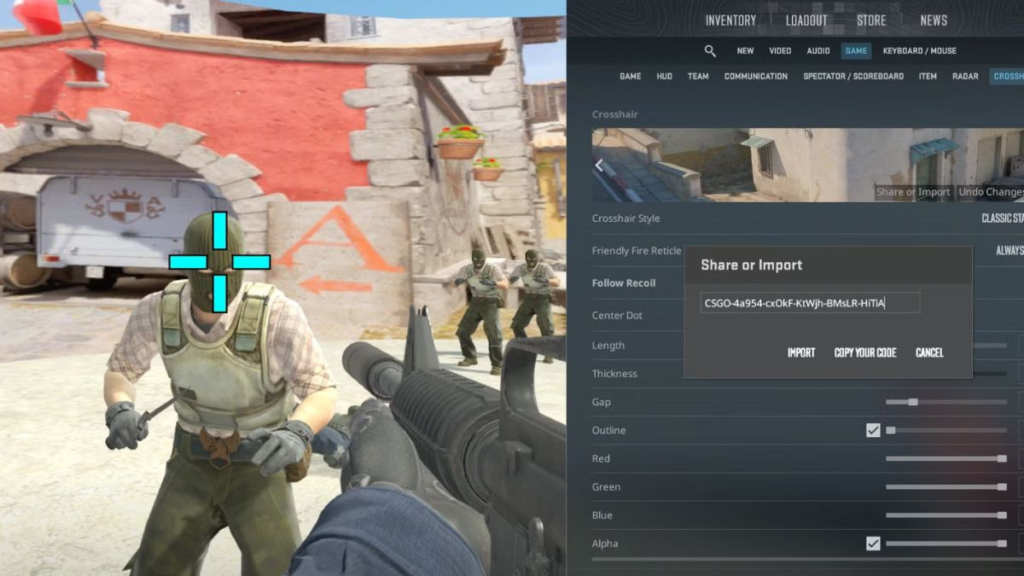
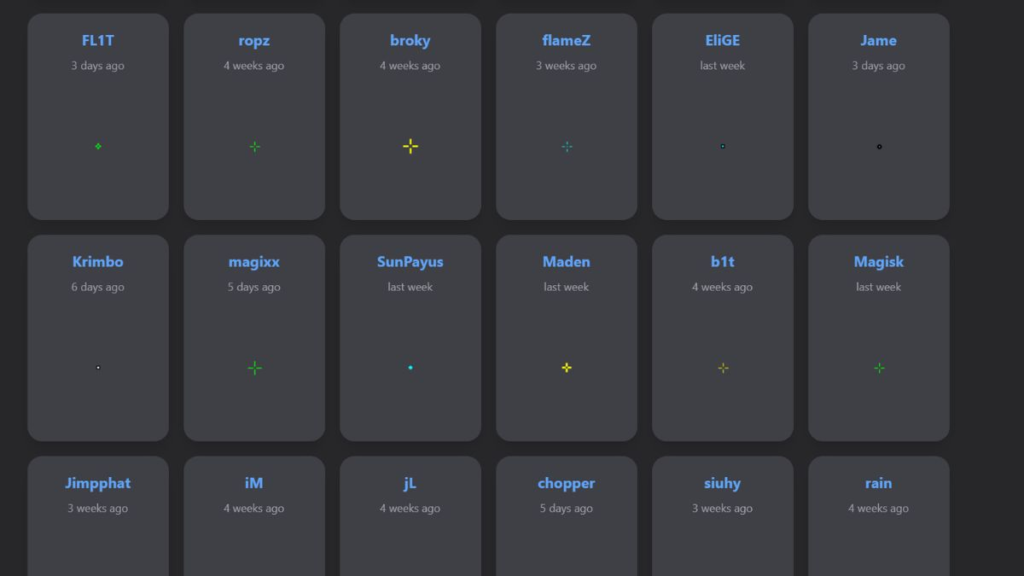
You do not have to adjust every setting manually. Instead, you can use a CS2 crosshair code. A crosshair code lets you copy an existing setup quickly. Therefore, it is useful when you want to try a friend’s crosshair or a setup used by another player.
In the crosshair settings, find the Share or Import option. Then, paste the code into the required field and confirm it.
Next, enter a game and check your new crosshair. If the code does not work, check the copied text again. You may have missed a character or added an extra space.
Also, use codes from reliable sources. More importantly, you do not need additional software to import a crosshair code.
Save and Share Your Crosshair
Once you find a setup that works, save your crosshair code. You can use the Share or Import feature to generate a shareable code. Then, save it in a personal note. This makes it easier to restore your previous setup. It is especially useful if you want to experiment with another crosshair.
However, remember that a crosshair code only copies the crosshair settings. It does not copy another player’s aiming experience.
Mouse sensitivity, DPI, monitor settings, and grip style can all be different. Therefore, continue adjusting the crosshair after importing a code.
How to Choose a Crosshair for Your Playstyle
Every player has different aiming habits. Therefore, the best Crosshair CS2 setup also varies from player to player.
You Cannot See Your Crosshair Clearly
If you often lose sight of your crosshair, choose a color with strong contrast.
You can also increase the thickness slightly. In addition, enabling an outline may help.
You Struggle to Aim at Heads From Long Range
In this case, try a smaller crosshair.
Thin lines and a moderate gap can also leave more space around the center. If the center dot covers your target, try turning it off.
You Lose Your Crosshair When Turning Quickly
Try a medium-sized crosshair. At the same time, choose a bright and visible color.
However, avoid making the crosshair too large. A huge crosshair can cover the target during gunfights.
You Do Not Like a Moving Crosshair
If crosshair movement distracts you, try a static crosshair.
This style keeps the crosshair stable. Therefore, you can focus more on holding angles and keeping your aim at head level.
You Want More Visual Feedback While Moving
In this case, you can try a dynamic crosshair. The crosshair changes as you move or shoot. As a result, you get more visual feedback during gameplay.
However, a dynamic crosshair does not make your weapon more accurate. It only shows visual changes in the crosshair.
You Want to Practice Recoil Control
You can try Follow Recoil during practice sessions. This feature helps you track the direction of your crosshair while spraying. However, it does not control your aim or reduce recoil automatically.
Therefore, you still need to practice mouse control.
You Are New to CS2
If you are new to the game, start with a simple setup. A static crosshair with a medium size and an easy-to-see color is a good choice. At the same time, keep the gap at a moderate level.
Once you become familiar with the shooting mechanics, you can adjust individual settings. As a result, finding your ideal setup becomes easier.
You Want Consistent Competitive Performance
Once you find a crosshair that feels comfortable, keep using it for a while.
Changing your crosshair too often can make it harder to build consistent muscle memory. Instead, a stable setup lets you focus on crosshair placement and decision-making.
What Is the Best Crosshair CS2 Setup?
There is no single best Crosshair CS2 setup for every player. Instead, the best crosshair is one that you can see clearly. It should also avoid covering your target. Most importantly, you should feel comfortable using it for a long time.
Therefore, do not simply copy a professional player’s crosshair. A popular setup may still feel uncomfortable for you. Instead, use it as a starting point. Then, adjust the color, size, gap, and thickness.
Also, test your crosshair in different situations. Check it during close-range fights, long-range fights, and on both bright and dark backgrounds.
Conclusion
A Crosshair CS2 setup may seem like a small detail. However, it can directly affect visibility and your overall aiming experience. Therefore, start with a simple crosshair. Then, adjust each setting until you find a setup that feels natural.
You can change the color, size, gap, thickness, outline, and center dot. In addition, you can use a CS2 crosshair code to quickly test another player’s setup.
Finally, choose a crosshair that is easy to see and keep it for a reasonable period. When combined with crosshair placement practice, recoil control, and good movement, it can help you build a more consistent CS2 aiming experience.
Play more online games at: https://tenkly.com/games/
#CS2 #Crosshair #GamePC #GameMobile